Installing Primo RPA Agent and Robot on Windows
This guide explains how to install and register Primo RPA Agent in Orchestrator and then deploy Primo RPA Robot on the same machine. Follow the steps in sequence — first, install and configure the Agent; next, add and activate the Robot.
Part 1. Install Primo RPA Agent
Step 1. Download the Agent package
Request the download link for the archive with the Agent installation files from your sales/support manager and download the Agent package for Windows.
Step 2. Unpack the archive
On the machine where the Agent will be installed, extract the contents of the downloaded archive into the following directory:
C:\Primo\AgentStep 3. Register and configure the Agent service
Open PowerShell as Administrator and run the following commands one by one.
- Set the environment variable (ProdWin mode)
[System.Environment]::SetEnvironmentVariable('ASPNETCORE_ENVIRONMENT', 'ProdWin', [System.EnvironmentVariableTarget]::Machine)- Register the Agent as a Windows service
New-Service -Name "Primo.Orchestrator.Agent" -BinaryPathName "C:\Primo\Agent\Primo.Orchestrator.Agent.exe" -Description "Primo.Orchestrator.Agent" -DisplayName "Primo.Orchestrator.Agent" -StartupType Automatic- Allow inbound TCP connections on port 5002
New-NetFirewallRule -Name "Primo Agent (5002)" -DisplayName "Primo Agent (5002)" -Profile "Private, Domain, Public" -Direction Inbound -Action Allow -Protocol TCP -LocalPort 5002Step 4. Add the Agent in Orchestrator
-
Log in to Orchestrator and go to:
Settings > System > Workers -
Click “Add Worker”.

Step 5. Register the new Worker
In the dialog that appears:
- Agent Name – any name of your choice,
- IP Address – the IP address of the machine where the Agent has been installed.
Click “Save”
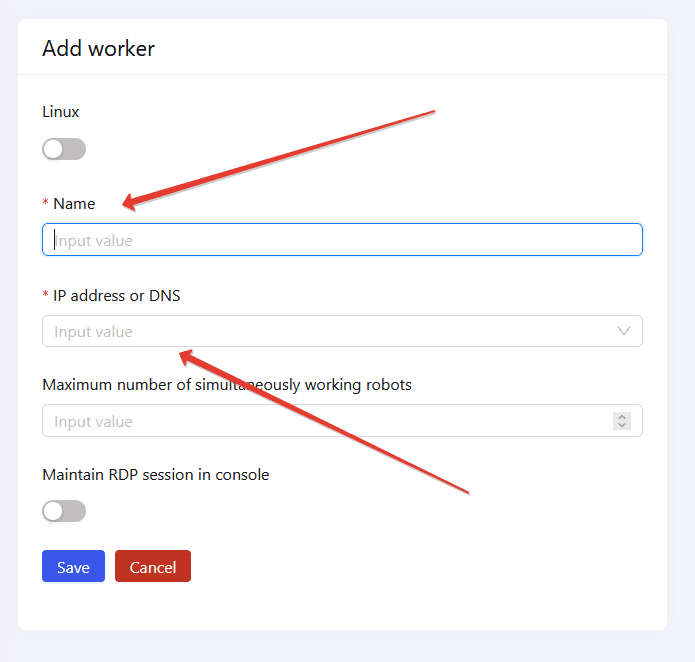
Step 6. Assign a Robot account
- Select the newly added worker (check the box next to it).
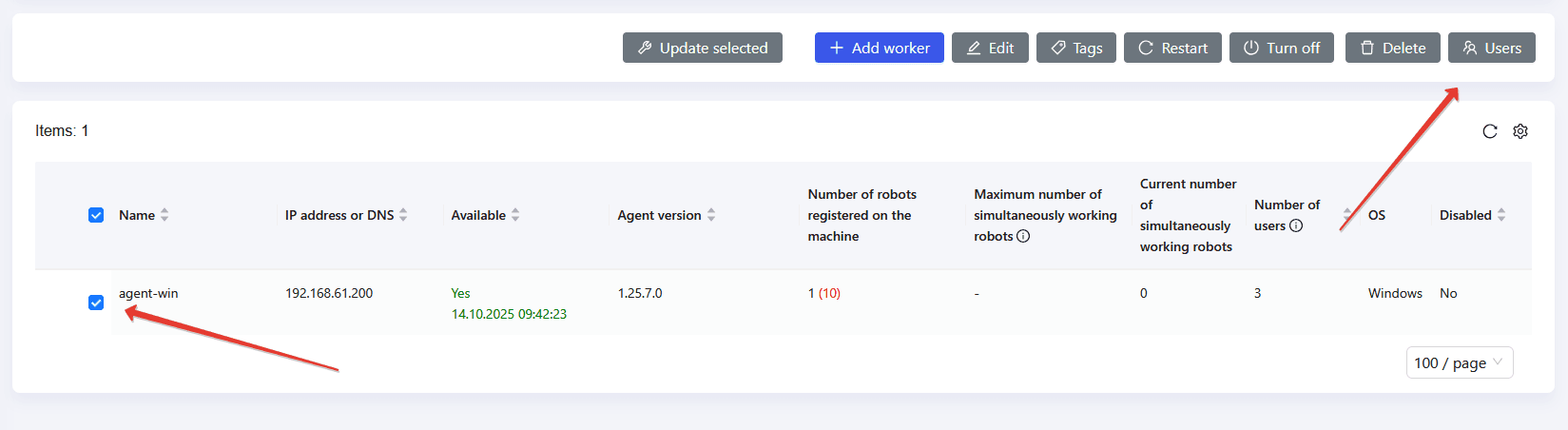
- Click the “Users” button.
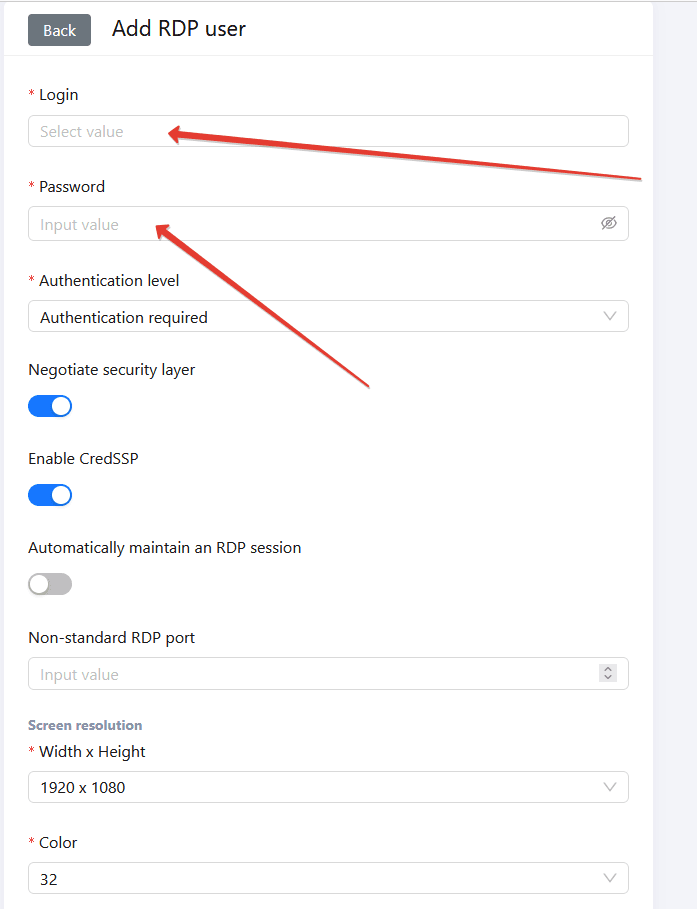
- Click “Add RDP User”.
- Add a robot account — either:
- a domain account (username@domain), or
- a local account on the Agent machine (username).
- Click “Save”.
Part 2. Deploy the Robot
After the Agent has been installed and registered, proceed with deploying the Robot.
Step 1. Upload the robot distribution package
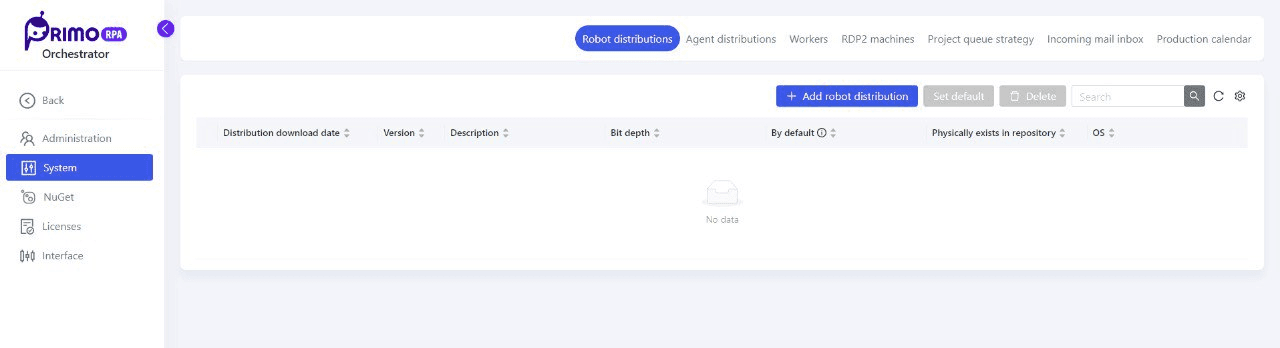
- In Orchestrator, go to Settings > System > Robot Distributions.
- Click “Add Robot Distribution”.
- Upload the distribution package marked “Orchestrator”. This package will be used to install robots on connected machines.
Note: You can request the download link for Robot distributions for Windows from your sales/support manager.
Step 2. Create a new Robot
- Go to the “Robots” section.
- Click “Add Robot”.
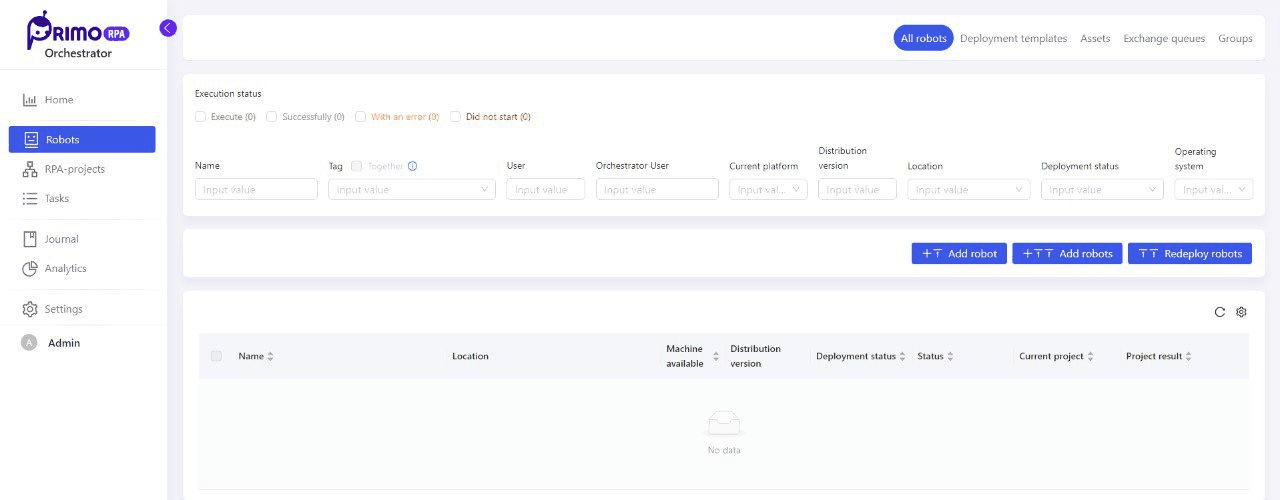
- In the “Add Robot” dialog, configure the following key parameters:
- Name — the name under which the robot will appear in Orchestrator.
- Worker — select the machine where the robot will run (the one with the installed Agent).
- Distribution Version — choose one of the previously uploaded distributions.
- User — select the account under which the robot will operate.
- Engine Version — usually set to V2.
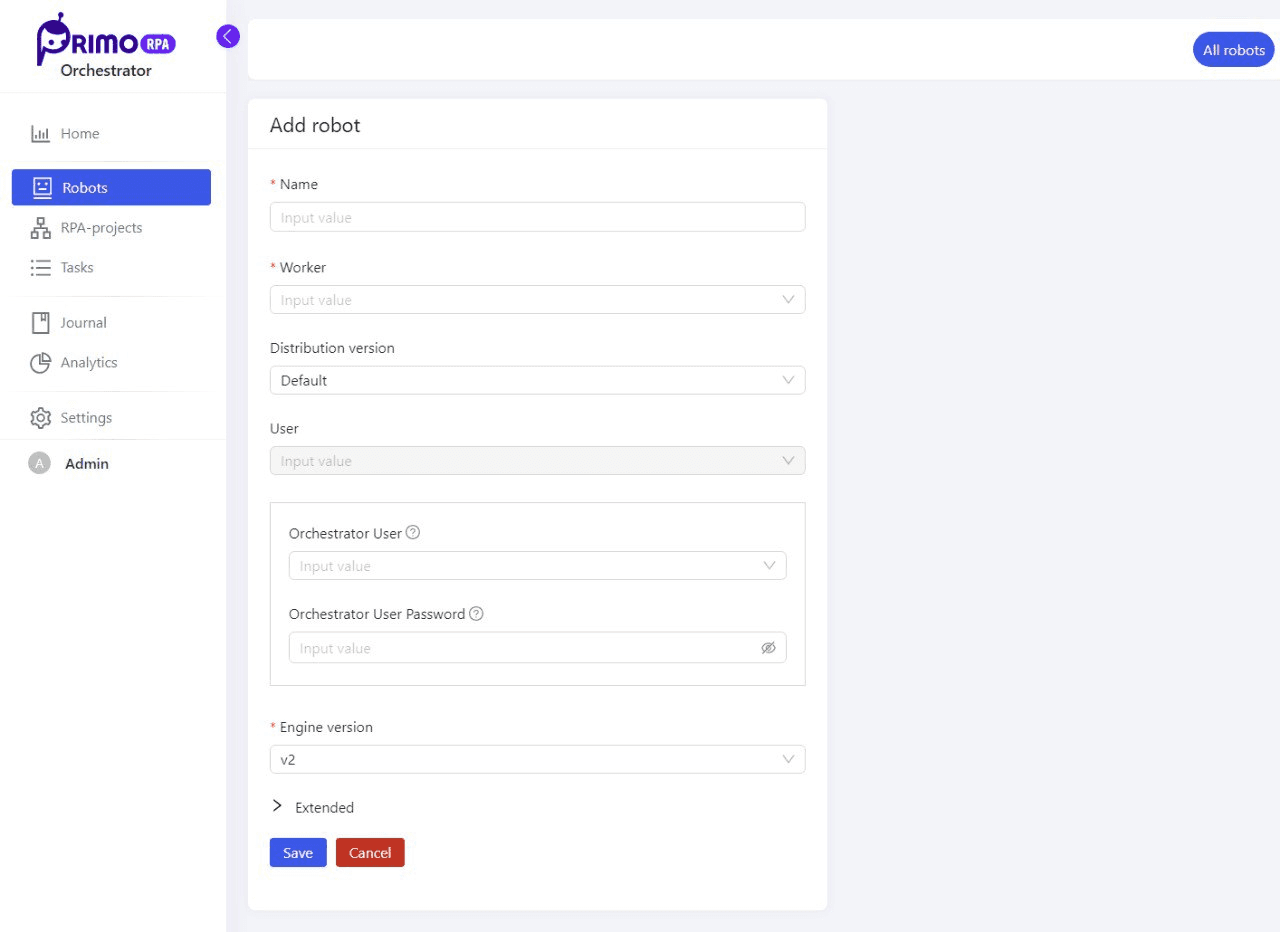
- (Optional) You may expand Advanced Settings. If not changed, default parameters will be applied automatically.
- Click “Save”.
Step 3. Verify the installation
After saving, the robot will appear in the “Robots” section of Orchestrator. Its status should indicate that it is connected and ready for work.