Installing RDP2 on Windows 2016 Server
Unzip C:\Install\RDP2.zip to C:\Primo\RDP2.
Edit the RDP2 configuration file (C:\Primo\RDP2\appsettings.ProdWin.json):
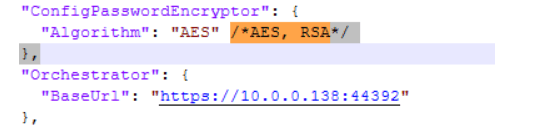
Change the Orchestrator address in the Orchestrator section of the configuration:
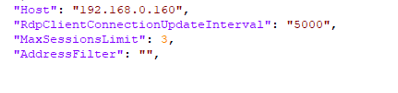
Here, Host is the IP of the machine with RDP2 service. If left blank, the IP will be resolved from the HTTP request.
If necessary, set the AddressFilter value to filter by the Agent machine, or leave the field blank (all Agents in the system will be used). Worker addresses should be separated with commas (as they are specified on the Workers tab).
The RdpClientConnectionUpdateInterval value specifies the service step/interval in milliseconds; changing it is not recommended.
The MaxSessionsLimit value specifies the maximum number of new connections allowed in a single step/interval of service operation. This helps smooth the load on the Agent when there are a large number of simultaneous connections. If it becomes necessary to connect N sessions at once (where N > MaxSessionsLimit), only MaxSessionsLimit sessions will be connected in the first step, then another MaxSessionsLimit sessions will be connected after the RdpClientConnectionUpdateInterval step/interval, and so on until all N sessions are connected.
Configure the path to the log file and the log file rotation period (default is one day).
Create a system environment variable if one doesn’t already exist. To do this, run the following command in PowerShell:
[System.Environment]::SetEnvironmentVariable('ASPNETCORE_ENVIRONMENT', 'ProdWin', [System.EnvironmentVariableTarget]::Machine)Register Primo.Orchestrator.RDP2.exe as a Windows service and immediately start it. The service should run as a local service. To do this, run the following commands in PowerShell:
New-Service -Name Primo.Orchestrator.RDP2 -BinaryPathName "C:\Primo\RDP2\Primo.Orchestrator.RDP2.exe" -Description "Primo.Orchestrator.RDP2" -DisplayName "Primo.Orchestrator.RDP2" -StartupType Automatic
$s = Get-Service "Primo.Orchestrator.RDP2"
$s.Start()
Start the service. The service should run under the Local System account:
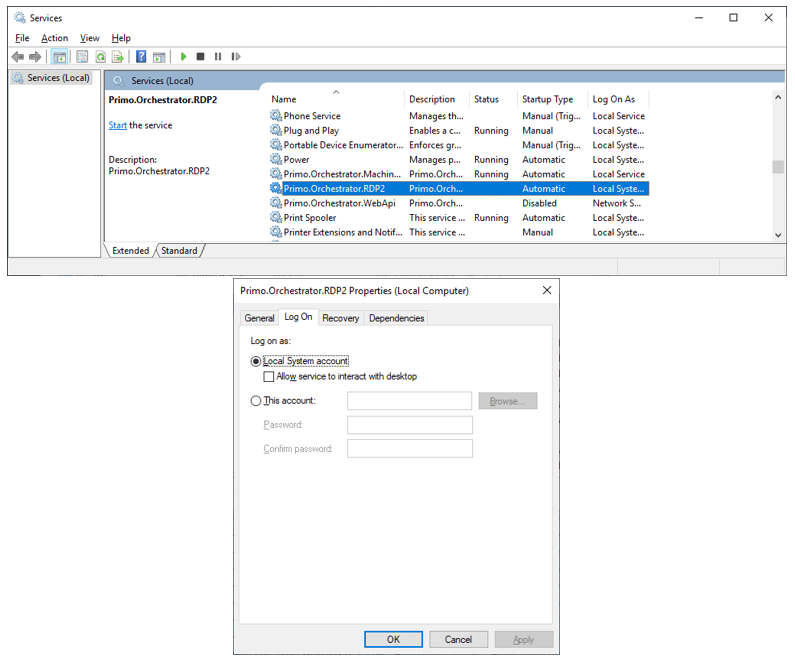
Go to the Recovery tab and make sure the actions on failure are set to Restart the Service and the Enable actions for stops with errors checkbox is marked.
After installing the Agent, follow these steps:
-
Verify that the RDP session is established correctly
-
Session parameters should be set to the following:
Authentication Level = Attempt Authentication
Negotiate Security Layer = True