Installing Orchestrator using Docker
1. System requirements
Minimum hardware required:
- 2 core CPU, 4 GB RAM
Environment:
- Operating System: Any Linux-based OS with Docker support (for example, Linux Ubuntu 20.04+)
- Docker 29.0.0 and Docker Compose 2.20.2 and higher (see Installing Docker section below for information on how to check if you have them installed)
- Account for
nexus.primo-rpa.ru:8000
Network configuration:
- Open port:
5080(Orchestrator UI) - the port can be changed if 5080 is occupied - Internet access is required temporarily to download Docker packages and images from the Primo RPA Nexus registry
2. Preliminary setup
-
Download the file
docker-compose.ymlfrom the release repository. -
docker-compose.ymlhas the recommended version of components already preset. To specify a different version, configure the parameters below in 3 places in the file:
- Specify the desired image version for each component. (Note that the repository address in the example below is given for illustration purposes only; contact technical support for the current address.)
    image: nexus01.s1.primo1.orch:8002/primo-rpa/orch-ui
    image: nexus01.s1.primo1.orch:8002/primo-rpa/orch-machine-info
    image: nexus01.s1.primo1.orch:8002/primo-rpa/orch-web-api
    image: nexus01.s1.primo1.orch:8002/primo-rpa/orch-robot-logs
    image: nexus01.s1.primo1.orch:8002/primo-rpa/orch-analytic
    image: nexus01.s1.primo1.orch:8002/primo-rpa/orch-notifications
    image: nexus01.s1.primo1.orch:8002/primo-rpa/orch-states
    image: nexus01.s1.primo1.orch:8002/primo-rpa/orch-log-events-webhook
image: nexus01.s1.primo1.orch:8002/primo-rpa/orch-nuget2- Change the port if necessary in the ports section for the ‘orch-ui’ component:
    ports:
      - '5080:80' # Replace 5080 with the necessary port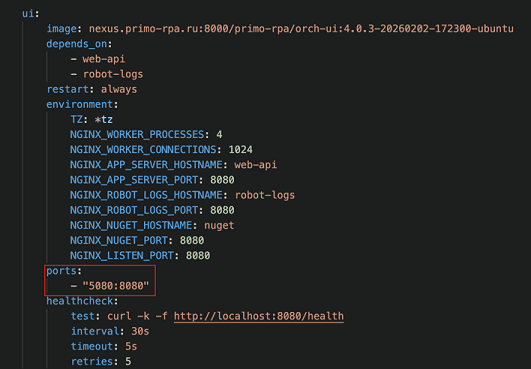
- Specify the correct base-url with the same port:
base-url: &base-url http://{server ip}:5080 # Use the same port as above3. Installing Docker
For complete Docker installation and upgrade instructions, see the official documentation: Docker for Ubuntu
Primo RPA Orchestrator requires Docker and Docker Compose to be installed on the target machine.
Check if the correct versions of Docker and Docker Compose are already installed
Run the following commands:
  docker –version
docker compose version- If the commands return version information, Docker and Docker Compose are installed. Continue with Verify Docker versions and Check Docker daemon status.
- If Docker is not installed (for example, the command is not found), install Docker by following the instructions below (see Docker Installation subsection).
If Docker version is 29.0.0 or higher and Docker Compose version is 2.20.2 or higher then Docker is installed correctly and no action is required. If Docker version is lower than 29.0.0 or Docker Compose version is lower than 2.20.2, you must update Docker and Docker Compose by following the official Docker installation and upgrade instructions .
After upgrading, re-run the version check commands to confirm that the required versions are installed.
Check Docker daemon status
Ensure that the Docker service is running:
systemctl status docker- If the service status is active (running), Docker daemon is operating correctly.
- If the service is inactive or not found, start and enable Docker:
  sudo systemctl start docker
  sudo systemctl enable docker
After starting the service, verify its status again.
Docker Installation
If Docker has not been previously installed on your machine, run the commands below in your terminal to install it. During the installation, press Y if asked.
  # Updating packages
    sudo apt-get update
    sudo apt-get install -y ca-certificates curl

  # Adding official Docker repository
    sudo install -m 0755 -d /etc/apt/keyrings
    sudo curl -fsSL https://download.docker.com/linux/ubuntu/gpg -o /etc/apt/keyrings/docker.asc
    sudo chmod a+r /etc/apt/keyrings/docker.asc

echo \
  "deb [arch=$(dpkg --print-architecture) signed-by=/etc/apt/keyrings/docker.asc] https://download.docker.com/linux/ubuntu \
  $(. /etc/os-release && echo "${UBUNTU_CODENAME:-$VERSION_CODENAME}") stable" | \
  sudo tee /etc/apt/sources.list.d/docker.list > /dev/null

# Installing Docker
    sudo apt-get update
    sudo apt-get install -y docker-ce docker-ce-cli containerd.io docker-buildx-plugin docker-compose-plugin
Verify the installation:
The Docker service starts automatically after installation. To verify that Docker is running, run the following commands in your terminal one by one:
  docker --version
  docker compose version
  sudo systemctl status docker
If you see version numbers and the Docker service is active (running) - everything is ready.
If the Docker service is not active, run the following command to start it manually (note that some systems may have this behavior disabled):
sudo systemctl start dockerAfter starting the service, verify its status again.
4. Launching Orchestrator
All commands (except docker login) must be run with root privileges or as sudo.
-
Login to the Primo Docker registry via docker login. You can request docker login credentials by contacting technical support.
docker login nexus.primo-rpa.ru:8000 -
Create the deployment directory:
sudo mkdir -p /opt/Docker -
Upload your docker-compose.yml file to the directory using one of the options below:
- Option 1: Upload via SCP (recommended for closed environments):
Upload the docker-compose.yml file to the server directory /opt/Docker.
scp /path/to/docker-compose.yml user@server:/opt/Docker/ After uploading, verify that the file exists:
ls /opt/Docker/docker-compose.ymlMake sure the file size is greater than zero and the file name matches exactly docker-compose.yml.
- Option 2: Download from disk.primo-rpa using command line. (Note that the repository address in the example below is given for illustration purposes only; contact technical support for the current address.)
Example using curl:
curl -L --fail \
-o /opt/Docker/docker-compose.yml \
"https://disk.primo-rpa.ru/index.php/s/t9BHBjR6PP06Yax/download?path=%2FRelease%2FOrchestrator%2Ftools%2Fconfigs&files=docker-compose.yml"-
Start containers:
cd /opt/Docker sudo docker compose up -d -
Check the status - all containers must be in the “Up” status:
sudo docker ps
5. Checking performance
After running the containers, open the following in your browser:
- Orchestrator UI:
http://your_server_ip:5080/
Verify via command line:
curl -I http://your_server_ip:5080/6. Configuring RDP2
Primo.Orchestrator.RDP2 service is not installed within Docker and needs to be installed separately using the instructions below:
- Installing RDP2 on Windows 2016 Server
- Installing and Configuring RDP2 Version 1.25.1.x on Astra Linux 1.7.x
- Configuring RDP2 version 1.25.9.x
In the RDP2 configuration, specify the IP and port of the server where Orchestrator is deployed (parameters EnabledOrigins, BaseUrl):
"EnabledOrigins": [
  "http://your_server_ip:5080"
],
"Orchestrator": {
  "BaseUrl": "http://your_server_ip:5080"
}Orchestrator in a Docker container runs over HTTP. Make sure that the EnabledOrigins and BaseUrl parameters in the RDP2 settings specify the http:// protocol, not https://.
7. Updating the version
-
Stop the current version:
cd /opt/Docker sudo docker compose down -
Update image tags in
docker-compose.yml -
Start the new version:
sudo docker compose up -d -
Clean up old images:
sudo docker image prune