Generation 1
The search template property contains a button ”…”, clicking which opens a window for visually editing the template (depends on the element type).
.756f8d7b.png&w=640&q=75)
Currently, search templates are available for elements of the following categories:
- Browser Elements Group
- Desktop Elements Group
Browser
The search template for Browser elements looks like this
.03481286.png&w=1920&q=75)
To add a template element, click the button _(3)_(1)_(1)_(1)_(8).90b1a002.png&w=48&q=75) , then select a new line and enter data in the Tag, Text, Index (starting from one) and Search in Frames (search inside iframe elements) fields. To refine the search, enter the names and values of the tag attributes in the table (key, value). If you specify multiple lines, the element search in the browser will go deeper from the very top template.
, then select a new line and enter data in the Tag, Text, Index (starting from one) and Search in Frames (search inside iframe elements) fields. To refine the search, enter the names and values of the tag attributes in the table (key, value). If you specify multiple lines, the element search in the browser will go deeper from the very top template.
To delete a template, use the button _(1)_(2)_(1)_(1)_(1)_(4).1d478ce8.png&w=48&q=75) , or press the Del button.
, or press the Del button.
You can automatically generate a template by clicking the Select Component button _(2)_(1)_(1)_(2)_(1)_(2).1136a5ac.png&w=48&q=75) and clicking the desired element in the browser window. You can also use the quick button on the element itself.
and clicking the desired element in the browser window. You can also use the quick button on the element itself.
When you click the Display Component button _(1)_(1)_(1)_(2)_(6).c2f7b76d.png&w=48&q=75) , the control designated in the current template will be highlighted.
, the control designated in the current template will be highlighted.
The UI Inspector button .94f81455.png&w=48&q=75) is used to display/hide the interface research module.
is used to display/hide the interface research module.
.33738c98.png&w=1920&q=75)
In this module, you can explore the application structure. Using the buttons _(2)_(1)_(1)_(2)_(1)_(4).805673ab.png&w=32&q=75) and
and _(2)_(1)_(1)_(2)_(1).6f9fb3a3.png&w=32&q=75) , the selected elements are transferred to the template.
, the selected elements are transferred to the template.
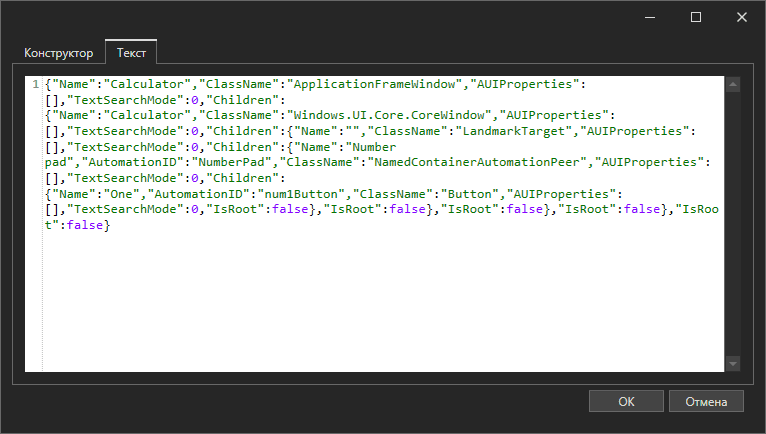
The search template is a JSON-formatted string containing all the necessary attributes for searching. You can enter the template manually by going to the Text tab.
.1653651b.png&w=1920&q=75)
Desktop
The search template for Desktop elements looks like this
.131af9da.png&w=1920&q=75)
To add a template element, click the button _(3)_(1)_(1)_(2)_(1)_(10).90b1a002.png&w=48&q=75) , then select a new line and enter data in the Name, AutomationID, ClassName, ControlType, LocalizedControlType and Index (starting from one) fields. To refine the search, enter the names and values of the desired component attributes in the table (key, value). If you specify multiple lines, the element search in the robotic application will go deeper from the very top template. To shorten the route, check the “Fast Search” checkbox.
, then select a new line and enter data in the Name, AutomationID, ClassName, ControlType, LocalizedControlType and Index (starting from one) fields. To refine the search, enter the names and values of the desired component attributes in the table (key, value). If you specify multiple lines, the element search in the robotic application will go deeper from the very top template. To shorten the route, check the “Fast Search” checkbox.
To delete a template, use the button _(1)_(2)_(1)_(1)_(2)_(1)_(1).1d478ce8.png&w=48&q=75) , or press the Del button.
, or press the Del button.
You can automatically generate a template by clicking the Select Component button _(2)_(1)_(1)_(2)_(1)_(23).1136a5ac.png&w=48&q=75) and clicking the desired element in the application window. You can also use the quick button on the element itself.
and clicking the desired element in the application window. You can also use the quick button on the element itself.
When you click the Display Component button _(1)_(1)_(1)_(2)_(4).c2f7b76d.png&w=48&q=75) , the control designated in the current template will be highlighted.
, the control designated in the current template will be highlighted.
The UI Inspector button .94f81455.png&w=48&q=75) is used to display/hide the interface research module.
is used to display/hide the interface research module.
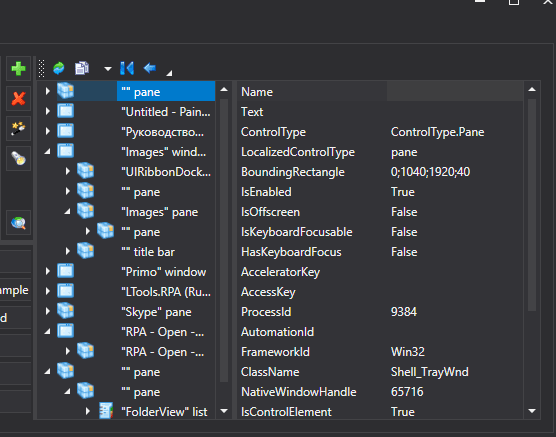
In this module, you can explore the application structure. Using the buttons _(2)_(1)_(1)_(2)_(1)_(3).805673ab.png&w=32&q=75) and
and _(2)_(1)_(1)_(2)_(1)_(3).6f9fb3a3.png&w=32&q=75) , the selected elements are transferred to the template.
, the selected elements are transferred to the template.
The search template is a JSON-formatted string containing all the necessary attributes for searching. You can enter the template manually by going to the Text tab.